The Fire TV and Fire TV Stick are simply android devices with Amazon's own skin and the absence of google services (like the Play Store). Just like any Android device, the Fire TV can have apps "sideloaded" onto it. The most common app to sideload is Kodi (formerly XBMC). Here is a
google doc of apps that work and do not, but it is a little under cultivated. Rather than installing ADB (Android Debug Base) and using the command line on a pc to install an .apk (Android Program) there are a couple programs that make the process very simple. My favorite is
adbFire.
1. Download and install adbFire
On your computer, head over to
jocala.com/adbfire.html and download the .zip for your OS, windows, mac, and linux are available. Extract the zip file which will give you a folder that has a lot of files and folders in it. You MUST keep all of the files in this folder because they are dependencies, you do not 'install' adbFire in the traditional sense (unless on a mac), instead you will open the program from within this folder.
2. Enable ADB and third party apps on your Fire TV
Head down to the settings on your Fire TV and go over to 'System' and then choose 'Developer options'.
Turn ON 'ADB debugging' and 'Apps from unknown sources'.
While we are in the System settings, back up and go to 'About' and go down to 'Network'. Take a note of your Fire TV or Stick's IP address and write it down if you need to.
3. Add your Fire TV to adbFire
Open up adbFire and you will notice that the 'Current Device' is blank. Click on 'New'. The only 2 fields that we need to worry about to get things to work is the device name and Address. The device name can be anything you want, the Address is the IP address we noted in the Fire TV System settings. Fill these out and click save.
4. Ready to sideload!
We are now ready to sideload an apk to the Fire TV. Make sure you choose the fire tv and it shows up in the 'Connected devices' field, if it doesn't click on Connect.
5. Sideload an .apk
For this example we will use kodi to sideload. Head on over to
kodi.tv/download/ and download the Android version for ARM processors. Like all android programs, it will be an .apk file (Android Application Package). Simply click 'Install APK' and choose the apk you want to install and wait for it to say it installed. Depending on the program size, it may take a few minutes. If it fails, try it again but it shouldn't fail twice.
6. Launching the sideloaded app
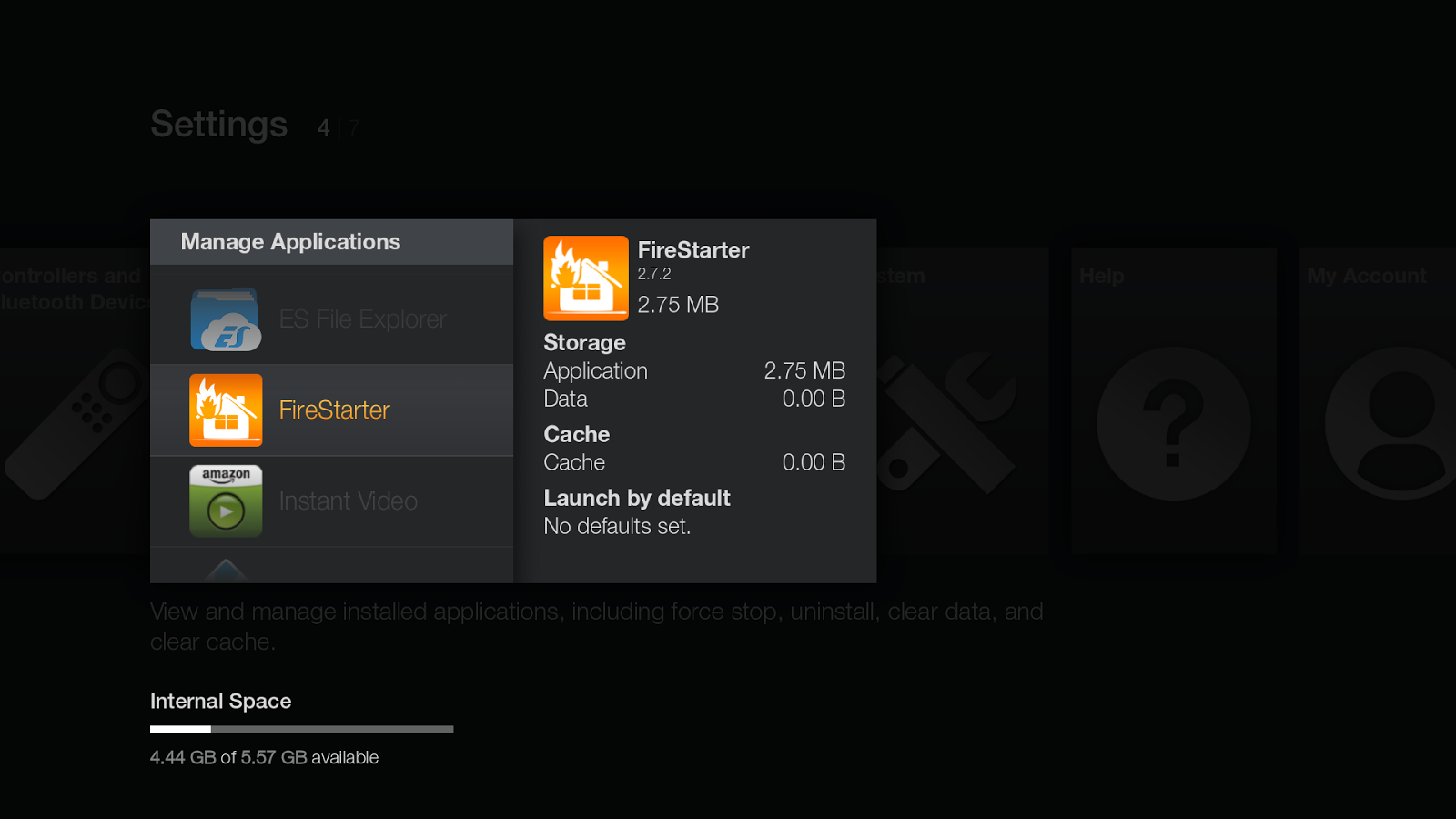
Unfortunately you will notice that Kodi is not showing up under your apps. This is because only Fire TV apps installed through the Amazon appstore show up on the Fire TV home screen. To lanch it you will have to go down to the Fire TV settings and head over to 'Applications' and then down to 'Manage Installed Applications'
Now you can see all of your installed apps and launch them from here!
7. Better and easier ways to launch sideloaded apps
My favorite way to launch apps is to use a different launcher that gives you a home screen that shows all of your sideloaded and normal amazon appstore apps. Check out my
firestarter guide here.