Saturday, July 15, 2006

3d Acceleration With ATI Cards On openSUSE 10.1

EDIT: Updated to use the newest ATI drivers released on August 18


- First you must have 'kernel-source' and 'compat-expat1' so install it. Assuming you have smart (if not here is a guide):
sudo smart install kernel-source compat-expat1
- Open your terminal and type the following::

x86:
Download ati-driver-installer-8.28.8-x86.run to your Home folder or move it there after it downloads.
Then in the terminal type these 2 lines:
sudo chmod -x ati-driver-installer-8.28.8.run
sh ./ati-driver-installer-8.28.8.run --buildpkg SuSE/SUSE101-IA32

x86_64:
Download ati-driver-installer-8.28.8-x86_64.run to your Home folder or move it there after it downloads.
Then in the terminal type these 2 lines:
sudo chmod -x ati-driver-installer-8.28.8.run
sh ./ati-driver-installer-8.28.8.run --buildpkg SuSE/SUSE101-AMD64
All:
Then install the package that was created: (If upgrading fglrx add the '--replacepkgs' flag)
sudo rpm -Uhv fglrx_6*.rpm

THIS NEXT PART YOU NEED TO WRITE DOWN because we are shutting down x
Do this in the terminal:
su
init 3

Log in as 'root' for the user name when prompted and enter password then:
sax2 -r -m 0=fglrx
(That is the number zero) click the OK button when prompted and then type:
reboot

Friday, July 14, 2006

SLED Menu For Ubuntu (Uslab) Now In Repo

After being noticed by QuinnStorm (of XGL/compiz repo fame), some patches were added to the .deb and she put it to her repo. The patches include:
  • Changing the word 'Computer' to 'Menu'
  • Replacing the little computer icon with the Ubuntu logo
  • Schemas added
  • 'Recently Used Applications' replaced with 'Places'
  • 'Install Software' correctly opens synaptic
If you don't already use her repo for XGL (which you should), here are quick instructions:
sudo nano /etc/apt/sources.list
Add this line to the bottom:
deb http://xgl.compiz.info/ dapper main
Then open the terminal and type these 2 lines to add the gpg keys:

gpg --keyserver subkeys.pgp.net --recv-keys 0x31a5f97fed8a569e
gpg --export --armor 0x31a5f97fed8a569e | sudo apt-key add -

And finally do:
sudo apt-get update
sudo apt-get dist-upgrade
The SLED menu is listed as 'gnome-main-menu', just 'sudo apt-get install' it:
sudo apt-get install gnome-main-menu gcontrol

Then when you right-click and choose 'Add to Panel', you will have the 'Main Menu' choice in the Misceleneous section.

Thursday, July 13, 2006

Add New SLED Menu To Ubuntu

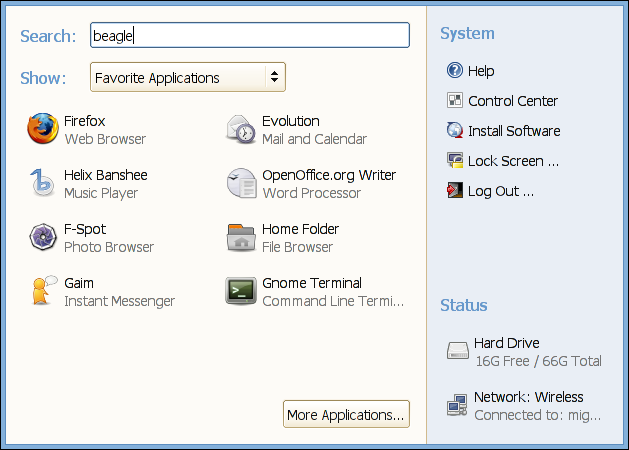
The latest contribution to GNOME by Novell has been the menu overhaul known as 'SLAB' in their upcoming commercial distribution SLED. If you want to try it out you don't have to download and install the SLED pre-release you can add it to Ubuntu. Just like XGL, SLAB is open source.


First we need to take care of some dependencies. Open your terminal and type this (all one line):

sudo apt-get install libgnome-desktop-dev libpanel-applet2-dev libgtop2-dev libdbus-glib-1-dev network-manager-dev libhal-storage-dev libiw-dev libgnome-menu-dev libresmgr-dev libavahi-core-dev banshee f-spot mono

Next download and install this .deb file made by cbudden here.

Then download and install slab.schemas.zip and extract it to your Desktop and do this in your terminal:

cd ~/Desktop
gconftool --install-schema-file=slab.schemas

Now when you right-click on your panel up top and choose 'add to panel' you will notice that in the 'Miscellaneous' section there is an option called 'Main Menu'... this is the one-button SLAB menu. You will also notice that there is now a control panel for Ubuntu. Right-click on programs and 'add to favorites' or drag and drop to modify it.

I played around with my panels a little but my top panel still seems so bare!
Free Image Hosting at www.ImageShack.us

If you want to check out the cvs source and try to compile it:

cvs -z3 -d :pserver:anonymous@anoncvs.gnome.org:/cvs/gnome login
(hit enter for password)
cvs -z3 -d:pserver:anonymous@anoncvs.gnome.org:/cvs/gnome co -P slab


Thanks to the SLAB thread in the Ubuntu forums.

Thursday, June 29, 2006

Yet Another XGL Video

XGL is great but when I discovered that tvtime didn't work with it I disabled it. Well, I decided to try xawtv instead after being told in a forum. It worked so I made a video.

Thursday, June 22, 2006

Getting To Know My Nano Again

I tried iPod Linux a few months ago but didn't really like it too much. So when I heard Mark Shuttleworth mention Rockbox in a recent podcast, I decided to give it a try and I must say that I am very impressed. It allows you play ogg files and adds extra functionality and even voice. This is how they describe Rockbox on their site:
Rockbox is an Open Source replacement firmware for hard-disk digital audio players including the Archos Jukebox 5000, 6000, Studio, Recorder, FM Recorder, Recorder V2 and Ondio MP3 players. Development of Rockbox for the iriver H1xx and H3xx series of players as well as the iPod 4G grayscale, Color/Photo, Nano and Video (5G) is underway.
Installation

My nano was formatted on OS X so it had the hfs filesystem but Rockbox requires fat32 so I used the 'iPod Software Updater' for Windows, and 'restored' the iPod. I then followed the instructions for installing the bootloader on iPods here. Installing the bootloader is the trickiest part but if you if create a c:rockbox folder and download the files into that folder you basically can just copy and paste the lines into the command prompt.

Installation of rockbox itself was much easier, you just unzip the latest build into the top directory of your iPod. The next time you reboot the iPod (hold menu and the 'on' button for 4-5 seconds, the 'on' button is the center button) rockbox loads up.


Playing Music

You don't add music through iTunes, (you can but you wont be able to find the files through rockbox)
you just put them on the ipod using disk mode wherever you want. I just created a 'Music' and a 'Podcasts' folder and drug what I wanted to in to those folders.

IMPORTANT: For some reason the files didn't write to the iPod if I just disconnected it from the computer. You must choose the 'safely remove hardware' icon in the system tray and stop the Ipod before proceeding to unplug it if your using Windows. Right click and unmount on Linux or eject on OS X. You will see a green check on the iPod when its safe to unplug.

Whenever you want to access your files press the middle (on) button and when you want to access options press the menu button.


Image Hosted by ImageShack.us
The options screen.

Themes

Yes, It is kind of ugly at first but you can download extra themes from the WPS gallery that corresponds with your particular model of media player. I chose the 'remixed black glass' for the nano. I didn't know at first how to install the theme but it turned out to be pretty straight forward.

There is a folder named .rockbox which is hidden so obviously you have 'show hidden files' in order to see it in Windows. Then drag the contents of the files from the theme folders into the corresponding folders in the .rockbox folder on your iPod. There wasn't a 'fonts' folder so I just created one. Unmount the iPod then unplug it.

Image Hosted by ImageShack.us
Remixed Black Glass theme. (WPS)

Plugins

The plugins that come with rockbox are varied and range from a calculator to Doom and getting Doom installed was easy. I just followed the instructions here. I was amazed at how smoothly it ran and it was even very controllable! If only I had an iPod video I'd try the Gameboy emulator, Rockboy...
Image Hosted by ImageShack.us Image Hosted by ImageShack.us
Image Hosted by ImageShack.us
Bubbles, Pacman, and Doom.

HOWTO: SuSE 10.1 With Smart, Multimedia, And OSx86

After Installation

We are going to install Smart to use instead of Yast to install packages because Yast is way too slow. Don't worry, you will still have a graphical interface for smart if you prefer it to the terminal.


First we need to take care of 2 dependencies, open the terminal and:

x86 (each code box is one line):

su

rpm -ihv ftp://ftp.belnet.be/mirrors/ftp.opensuse.org/opensuse/distribution/SL-10.1/inst-source/suse/i586/rpm-python-*.rpm


rpm -ihv ftp://ftp.belnet.be/mirrors/ftp.opensuse.org/opensuse/distribution/SL-10.1/inst-source/suse/i586/python-elementtree*.rpm

Then install Smart:
rpm -ihv http://ftp.gwdg.de/pub/linux/misc/suser-guru/rpm/packages/System/smart/smart-0.42-12.guru.suse101.i686.rpm


x86_64 (each code box is one line):

su

rpm -ihv ftp://ftp.belnet.be/mirrors/ftp.opensuse.org/opensuse/distribution/SL-10.1/inst-source/suse/x86_64/rpm-python-*.rpm


rpm -ihv ftp://ftp.belnet.be/mirrors/ftp.opensuse.org/opensuse/distribution/SL-10.1/inst-source/suse/x86_64/python-elementtree*.rpm

Then install Smart:
rpm -ihv http://ftp.gwdg.de/pub/linux/misc/suser-guru/rpm/packages/System/smart/smart-0.42-12.guru.suse101.x86_64.rpm


All processor types:
Now we do a:

sudo smart update

This will install apt and a sources.list and get the keys.
Lastly do:

sudo smart install smart-gui smart-ksmarttray
sudo smart upgrade

NOTE: It is a good idea not to try to install anything else or do anything in yast while updating.

Reboot.

TIP: For codecs and flash, java, etc. type the following line in the terminal (all one line):
sudo smart install vlc gstreamer010 libxine1* xvid java-1_5_0-sun-plugin totem-plugin RealPlayer banshee-plugins* flash-player
TIP:To get rid of the annoying updater icon in the systray and replace with a smart update notifier, right click on it and choose configure and uncheck the start on login box. Then open the control control center (Desktop>control center) and choose 'Sessions' in the system part. Click the Start up tab, then the add button and type 'ksmarttray' and close. Next time you reboot, all will be good.

The smart gui is in the menu under Applications>System>Configuration
IPB Image
You can also use the command line like apt:
"sudo smart update"
"sudo smart install "
"smart search "
"sudo smart upgrade"


For instructions on getting XGL to work go here.


OSx86 Support

First we will add OSx86 to the boot loader.

You will get a 'HFS partition error' when you try to boot OSx86 if you use yast to auto config grub, so we will manually change the 'menu.lst':

sudo nano /boot/grub/menu.lst
Add a 4 line entry to the end like this:

title OSx86
root (hd0,1)
makeactive
chainloader +1

(hint: 'hd0,1' was my /sda2, so if it is on the first partition it will be hd0,0)

Next we will set up SUSE so that it mounts OSx86 (Windows too if it doesn't already) each time at boot.

Open up the terminal (Applications>System>Terminal) and type the followinnew fileg:

sudo mkdir /media/OSx86
sudo mkdir /media/Windows
sudo nano /etc/fstab


You will see this in the terminal:
IPB Image
Notice the area I highlighted in black, i added the lines:

/dev/sda1 /media/Windows ntfs nls=utf8,umask=0222 0 0
/dev/sda4 /media/OSx86 hfsplus defaults 0 0


control X, yes, and enter (to save)

NOTE: use the partitioner in the 'System' part of YaST if you want to see the partitions.